
Writing
Working with Scenes
Section titled “Working with Scenes”Picking a Scene to Work On
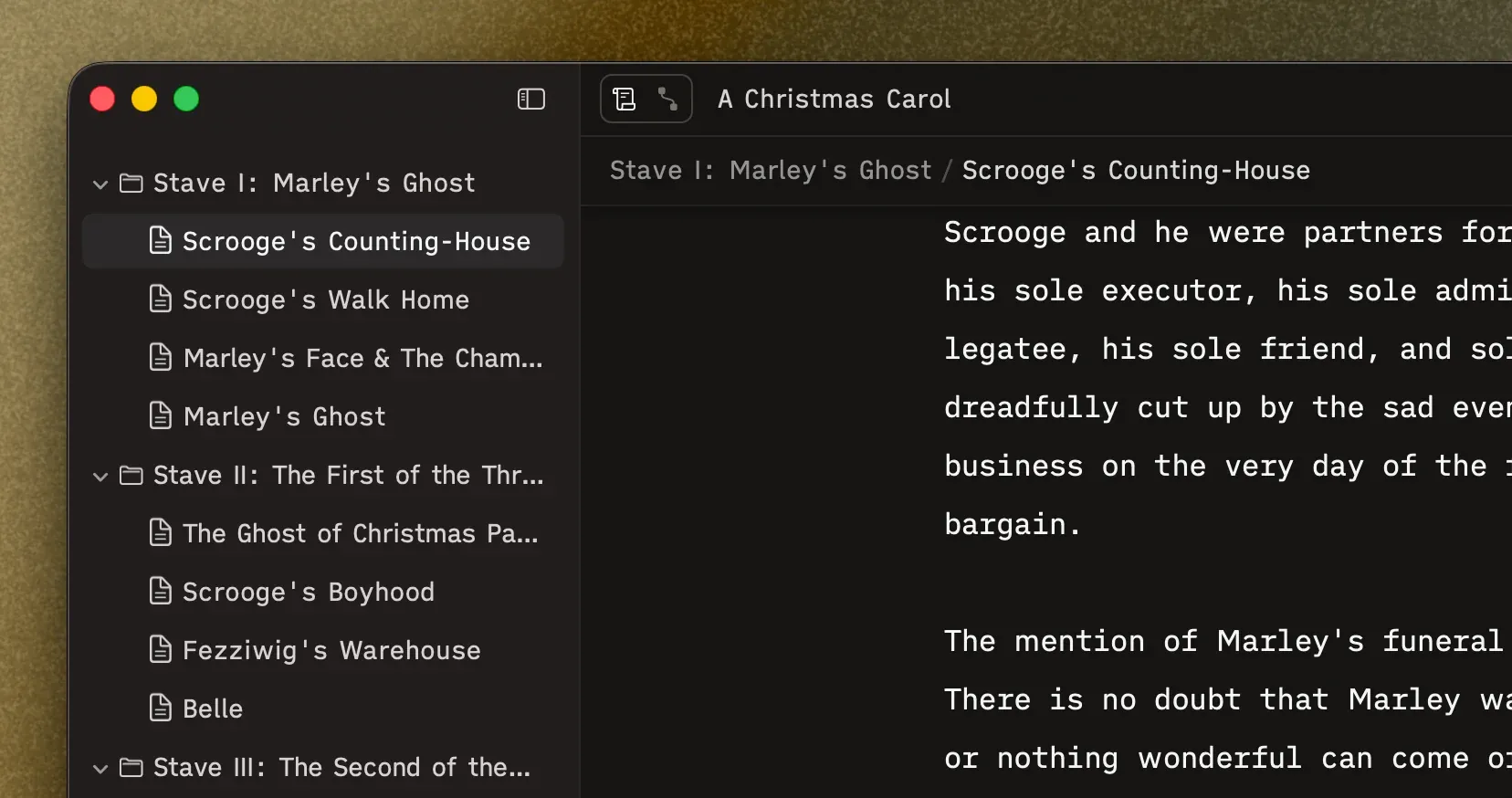
Section titled “Picking a Scene to Work On”Click any scene in the sidebar to open it in the editor. A breadcrumb trail at the top (e.g., “Part 2 → Chapter 5 → The Chase”) keeps you oriented — handy when your project grows beyond what you can hold in your head.
Moving Between Scenes
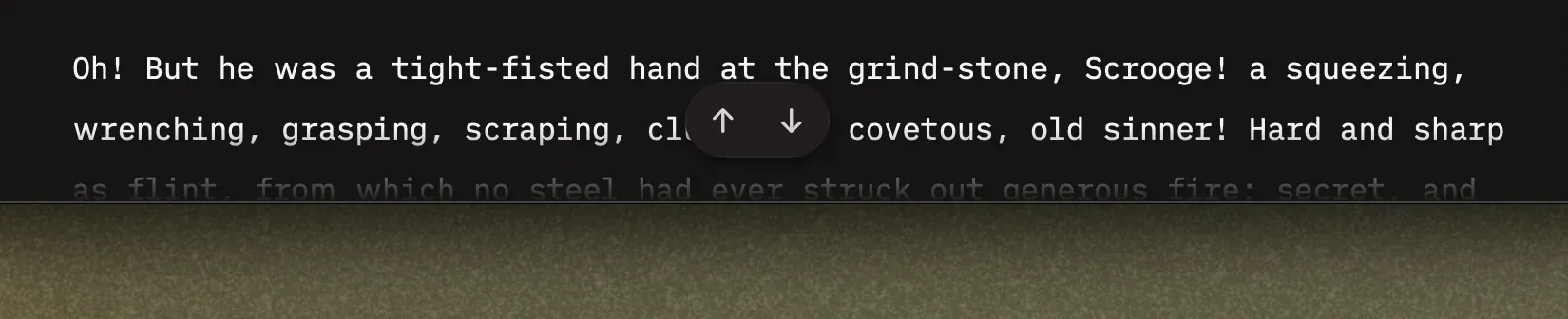
Section titled “Moving Between Scenes”A small navigation pill floats at the bottom of the editor. Hover over it to reveal Previous and Next arrow buttons. These step through your scenes in document order, so you can read through your manuscript sequentially without clicking around the sidebar.
Formatting Text
Section titled “Formatting Text”Herbert uses Markdown for formatting — but you don’t need to think in Markdown if you don’t want to. For inline styles like bold, italic, and highlight, select the text first, then apply the format.
There are three ways to format text, and they all do the same thing:
Keyboard Shortcuts
Section titled “Keyboard Shortcuts”The fastest option for muscle-memory writers:
| Shortcut | What you get |
|---|---|
| ⌘⇧1 | Title (H1) |
| ⌘⇧2 | Heading (H2) |
| ⌘⇧3 | Subheading (H3) |
| ⌘B | Bold |
| ⌘I | Italic |
| ⌘⇧H | Highlight |
| ⌘⇧‘ | Blockquote |
Slash Commands
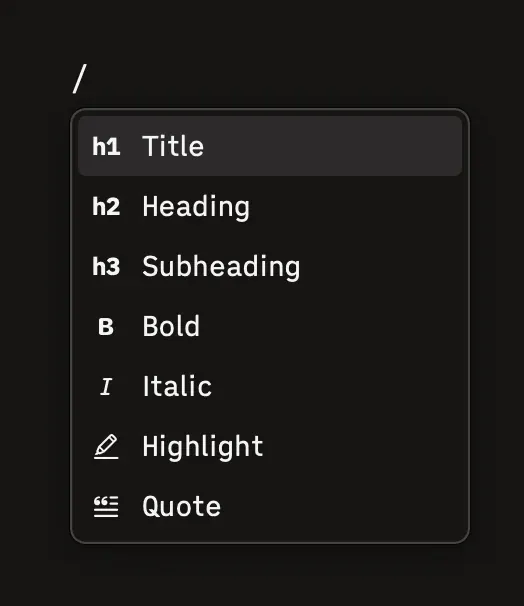
Section titled “Slash Commands”Type / at the start of a line or after a space. A menu appears with all formatting options. Use arrow keys to pick one, Enter to apply, Escape to dismiss. Good for when you can’t remember the shortcut.
Menu Bar
Section titled “Menu Bar”Everything is also in the Format menu, with shortcuts listed alongside each option.
Typewriter Mode
Section titled “Typewriter Mode”Typewriter mode keeps your current line vertically centered in the editor as you type. Your eyes stay in one spot while the text scrolls around your cursor — some writers find this helps them stay in flow.
Toggle it: Press ⌘T, or go to Writing → Typewriter. A brief toast confirms the change.
Markdown Syntax
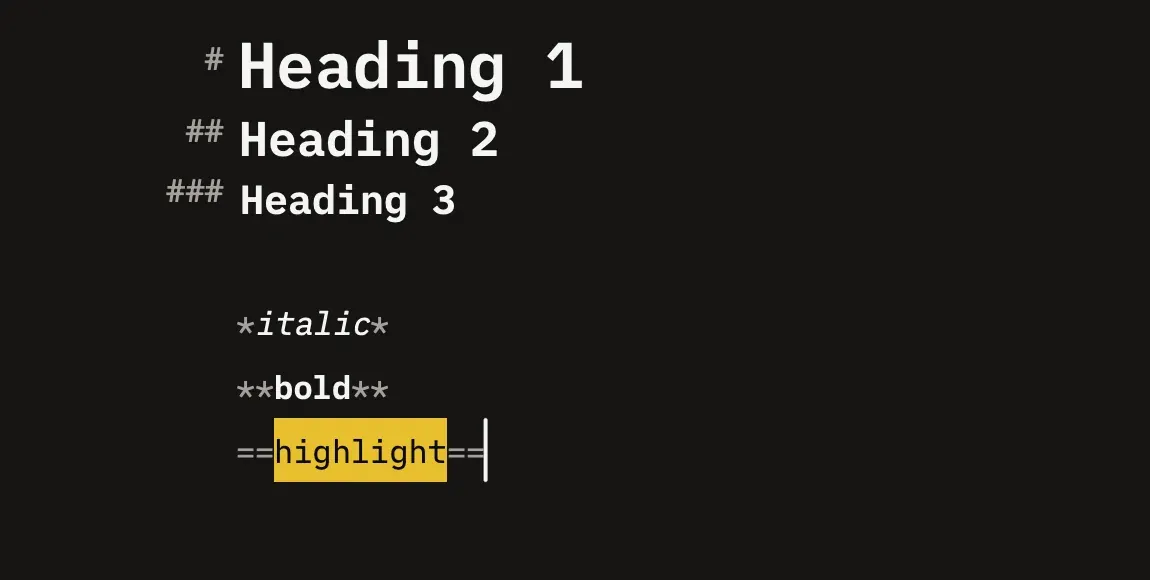
Section titled “Markdown Syntax”By default, Herbert renders your Markdown visually — headings look big, bold text looks bold, and so on. If you want to see the raw syntax characters (#, **, >) alongside your text, you can toggle them on.
Toggle it: Press ⌘⇧M, or go to Format → Markdown Syntax.
When enabled, block-level markers appear right-aligned in the left margin next to the relevant lines. It’s there if you want it, invisible if you don’t.
⌘Z and ⌘⇧Z work throughout Herbert — not just for text. Moving scenes, renaming folders, archiving items, editing properties: Herbert snapshots the project state before each change, so you can step back from just about anything.
One thing to be aware of: undo acts on whatever you’re currently focused in. When your cursor is in the text editor, ⌘Z undoes your text edits. Click outside the editor and ⌘Z undoes structural changes like moves and renames instead.