
The Outline Canvas
Navigating the Canvas
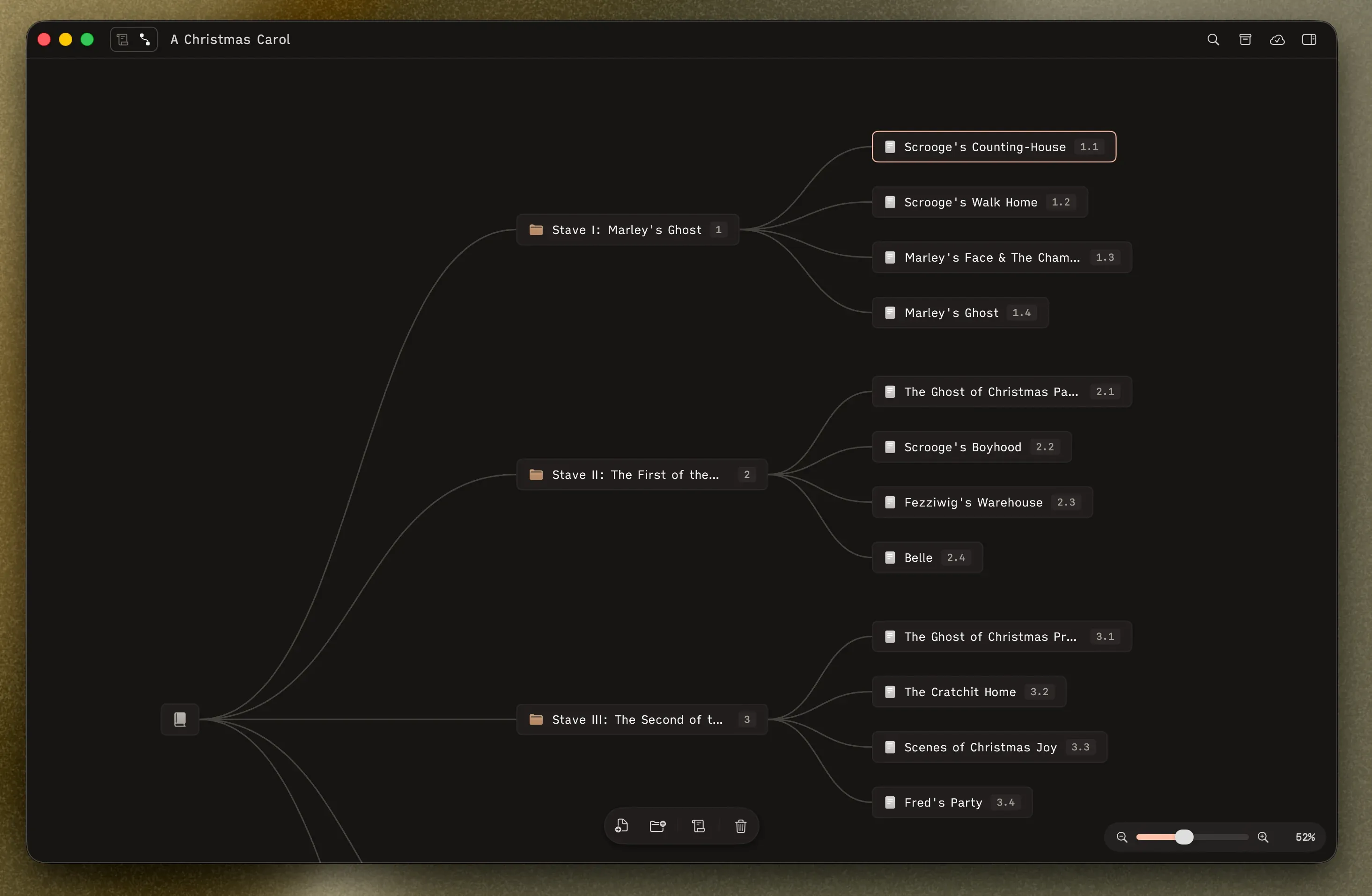
Section titled “Navigating the Canvas”The canvas is an infinite workspace. Here’s how to move around it.
Panning
Section titled “Panning”- Trackpad: Two-finger scroll in any direction.
- Mouse: Right-click and drag.
- Scroll wheel: Just scroll.
Zooming
Section titled “Zooming”- Trackpad: Pinch to zoom.
- Zoom slider: In the bottom-right corner, drag the slider or click the percentage. Range is roughly 30%–100%.
Zooming is cursor-aware — the point under your cursor stays fixed while the canvas scales around it.
Selecting Nodes
Section titled “Selecting Nodes”- Click a node to select it (clears previous selection).
- Shift-click to add or remove a node from your selection.
- Marquee select: Click and drag on an empty area to draw a selection rectangle around multiple nodes.
- Shift-marquee: Hold Shift while marquee-dragging to add to the existing selection.
Opening Scenes
Section titled “Opening Scenes”Select a scene node, then click Open in manuscript (the scroll icon) in the floating toolbar. Herbert switches to Manuscript view with that scene loaded and ready to edit.
Connector Lines
Section titled “Connector Lines”The lines between nodes represent the structure of your manuscript — which scenes belong to which folders, and how everything is nested. Move a scene into a different chapter and the lines update to reflect the new relationship.