Find and Replace
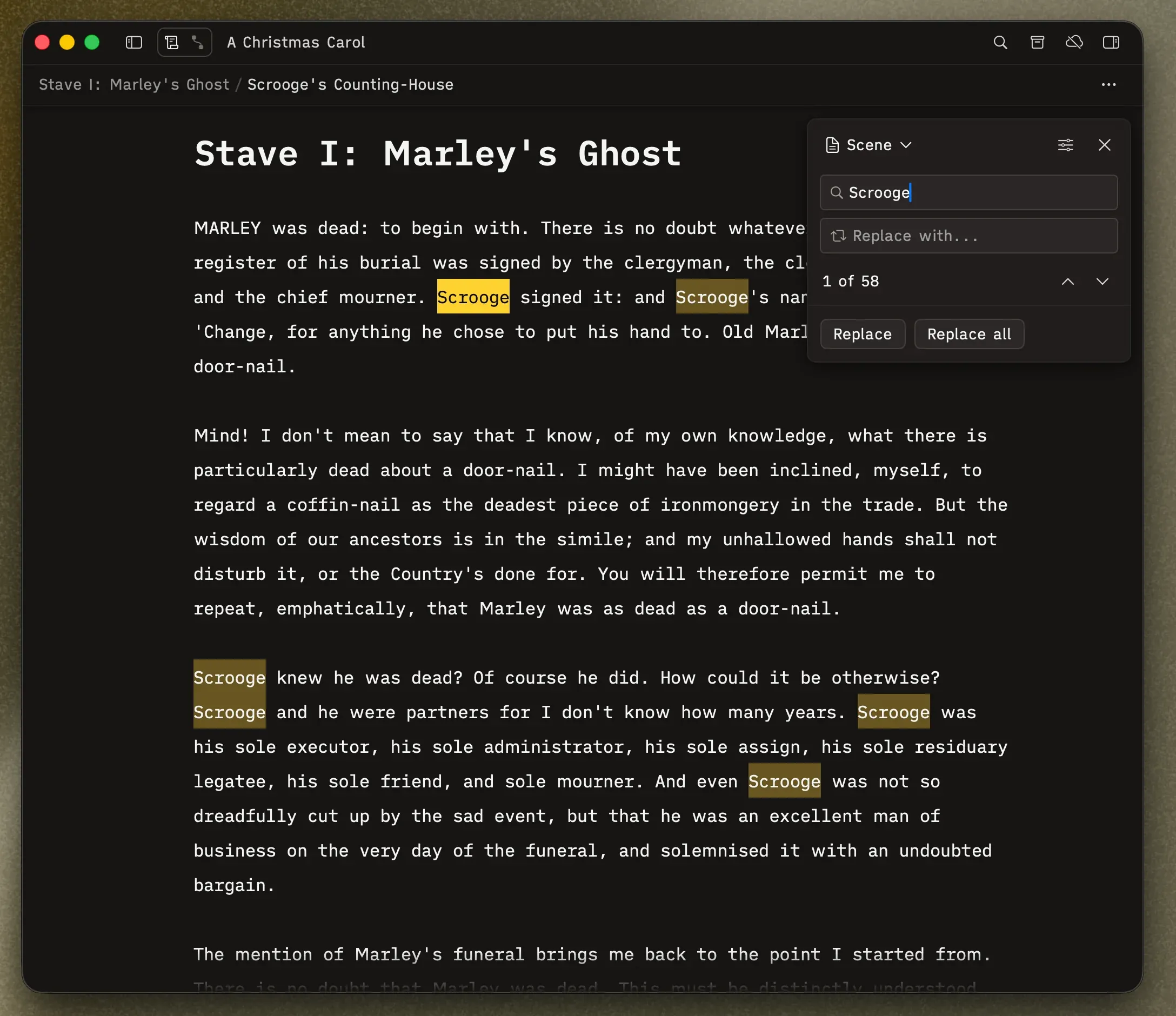
For searching within your text, press ⌘F to open the Find and Replace panel.
Find field — Type what you’re looking for.
Replace field — Type what to replace it with.
Scope — Toggle between “Scene” (current scene only) and “Project” (all scenes). In project scope, navigating between matches automatically switches scenes.
Options — Click the slider icon to toggle Match case and Whole word.
Navigation — Use the chevron buttons to step through matches. The status display shows your position (e.g., “2 of 14”).
Replace swaps the current match. Replace All swaps every match in the current scope — and it’s undoable as a single step with ⌘Z.
Press Escape or click the X to close.