Cloud Sync
Herbert has built-in cloud sync tied to your iCloud account — just your Apple ID, nothing else to configure. Turn it on and your projects stay in sync across all your Macs.
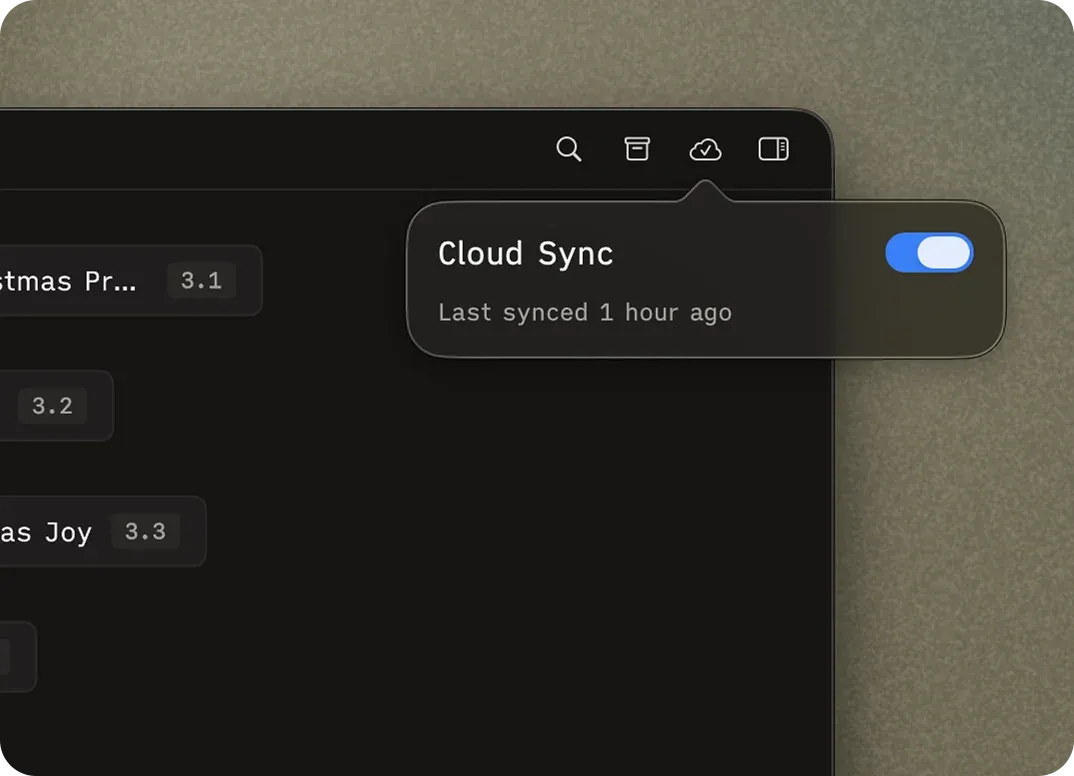
The quickest way is the cloud icon in the toolbar — click it to open a popover with a toggle switch. Flip it on to start syncing, off to stop. You can also use the menu bar: File → Cloud Sync → Enable Sync… or Disable Sync.
Once enabled, changes sync automatically in the background. There’s no manual “push” or “save to cloud” step.
Sync Status
Section titled “Sync Status”The cloud icon in the toolbar tells you what’s happening at a glance:
| Icon | What it means |
|---|---|
| Cloud with slash (gray) | Sync is off for this project |
| Rotating arrows | Sync in progress |
| Checkmark cloud | Synced and up to date |
| Exclamation cloud (orange) | Something went wrong |
Click the icon to see more detail, including when the project last synced. If you’re offline, an orange network indicator appears — changes queue up and sync automatically when you’re back online.
Managing Projects
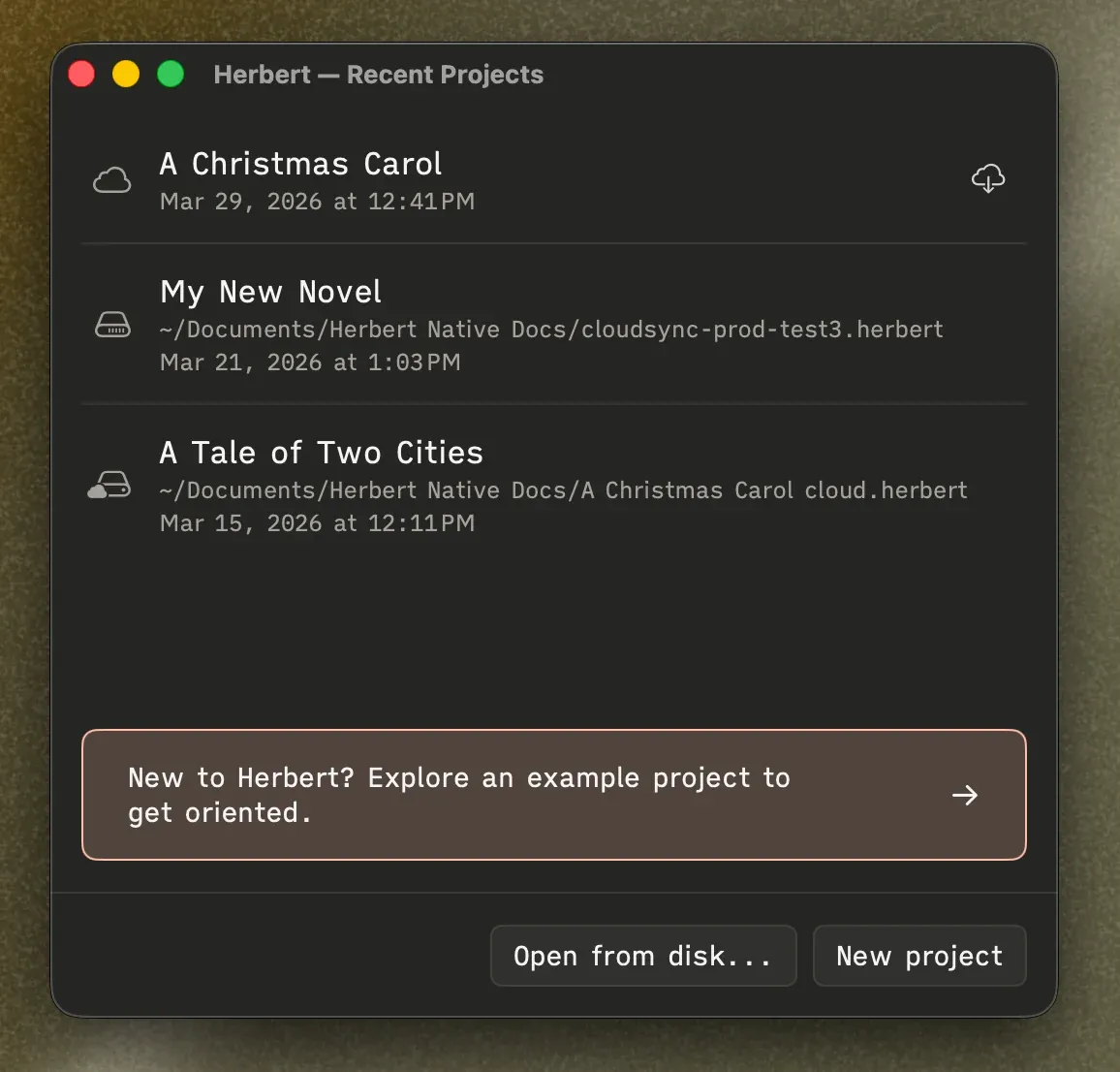
Section titled “Managing Projects”Go to File → Cloud Sync → Recent Projects… to see all your local and cloud-synced projects. From here you can:
- See each project’s status (local, synced, or available in iCloud but not yet on this Mac)
- Download an iCloud project to this Mac
- Delete a project from iCloud (with confirmation)